Custom Order Prep
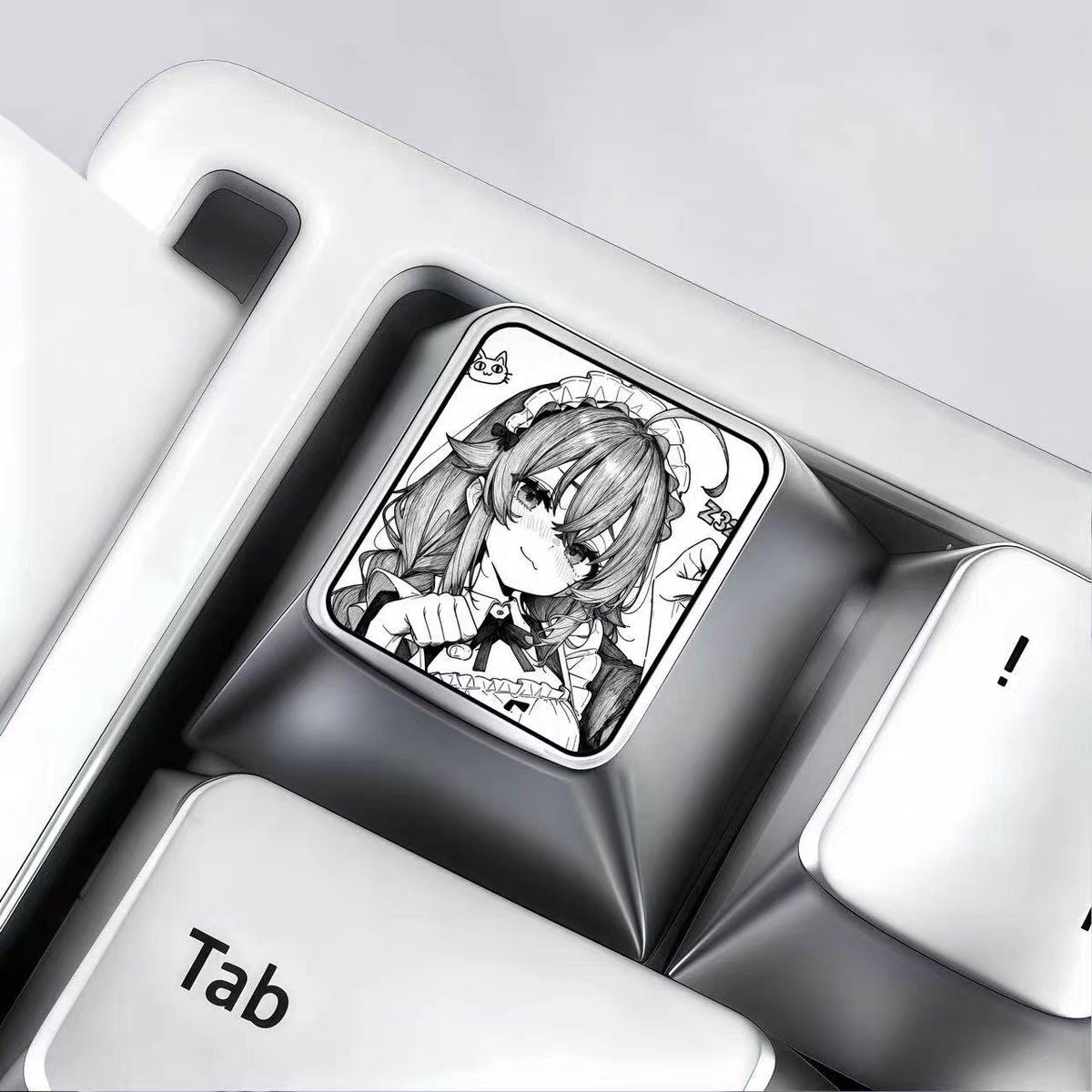
Prepare your artwork, initials, icons, and notes before creating your custom engraved keycap.
Before You Start
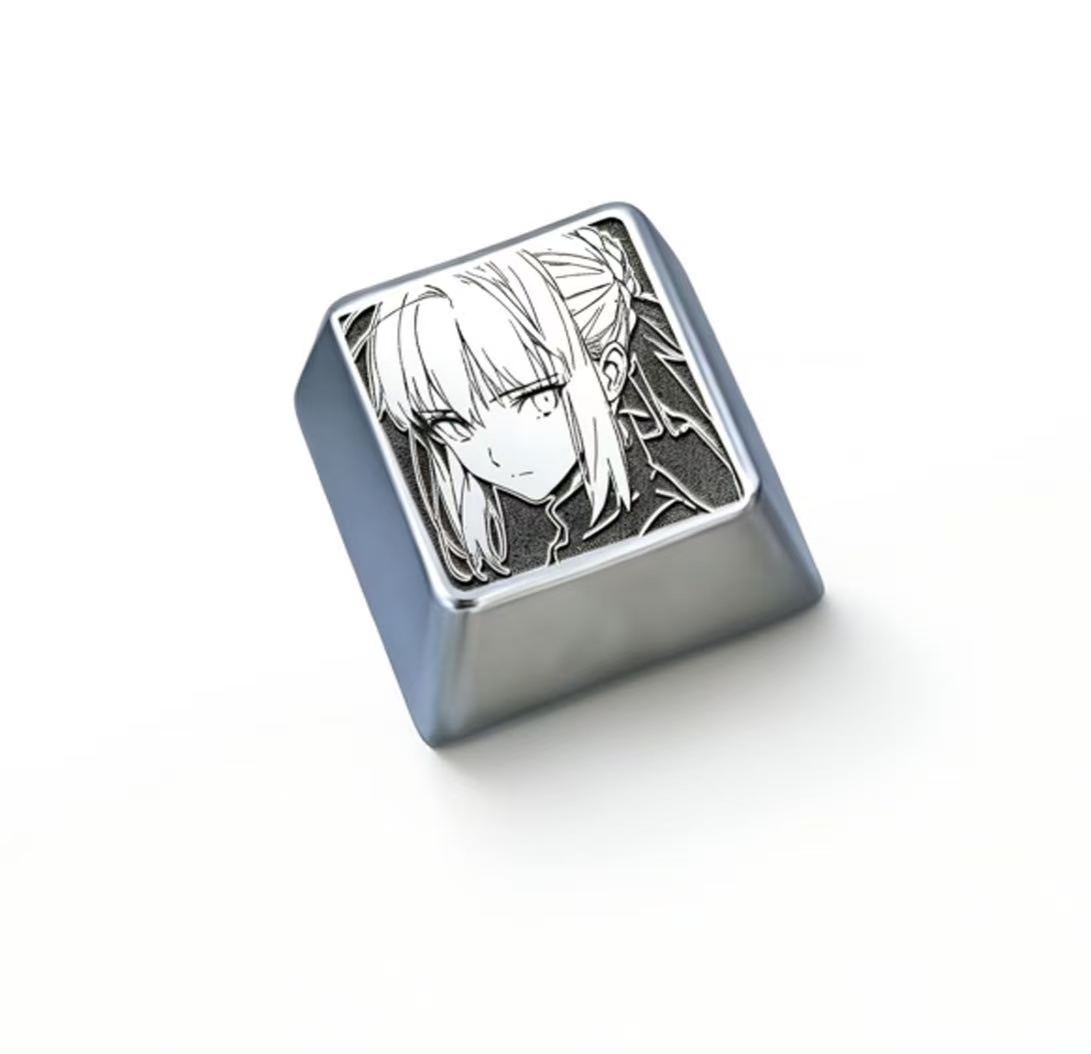
To create a cleaner engraving result, prepare your artwork before entering the Custom Studio. Simple black-and-white designs, logos, icons, initials, transparent PNGs, and line art usually work best for metal engraving.
Artwork File
Prepare a JPG, JPEG, PNG, or WEBP file.
Simple Design
Use clean lines, strong contrast, and minimal background detail.
Custom Notes
Add placement instructions, initials, or special requests.
Preview First
Review the 3D engraving preview before adding to cart.
Artwork Requirements
For the best engraving result, upload artwork with clear contrast and simple visual structure. Complex photos may produce messy engraving results because shadows, backgrounds, and fine photo details are difficult to convert into clean laser engraving.
Recommended
Black-and-white logos
Line art
Transparent PNG files
Simple icons
Initials or short text
Anime line drawings
White-background black artwork
Not Recommended
Complex photos
Busy backgrounds
Low-resolution screenshots
Blurry images
Color-heavy artwork
Images with heavy shadows
Tiny detailed patterns
How to Write Order Notes
Use the Order Notes field to tell us anything important about your custom design. This can include placement preference, engraving direction, initials, artwork details, or special requests.
Placement
Please keep the logo centered on the top face.
Text Detail
Use the initials “A.K.” under the icon if possible.
Design Request
Please keep the engraving clean and minimal.
About the 3D Preview
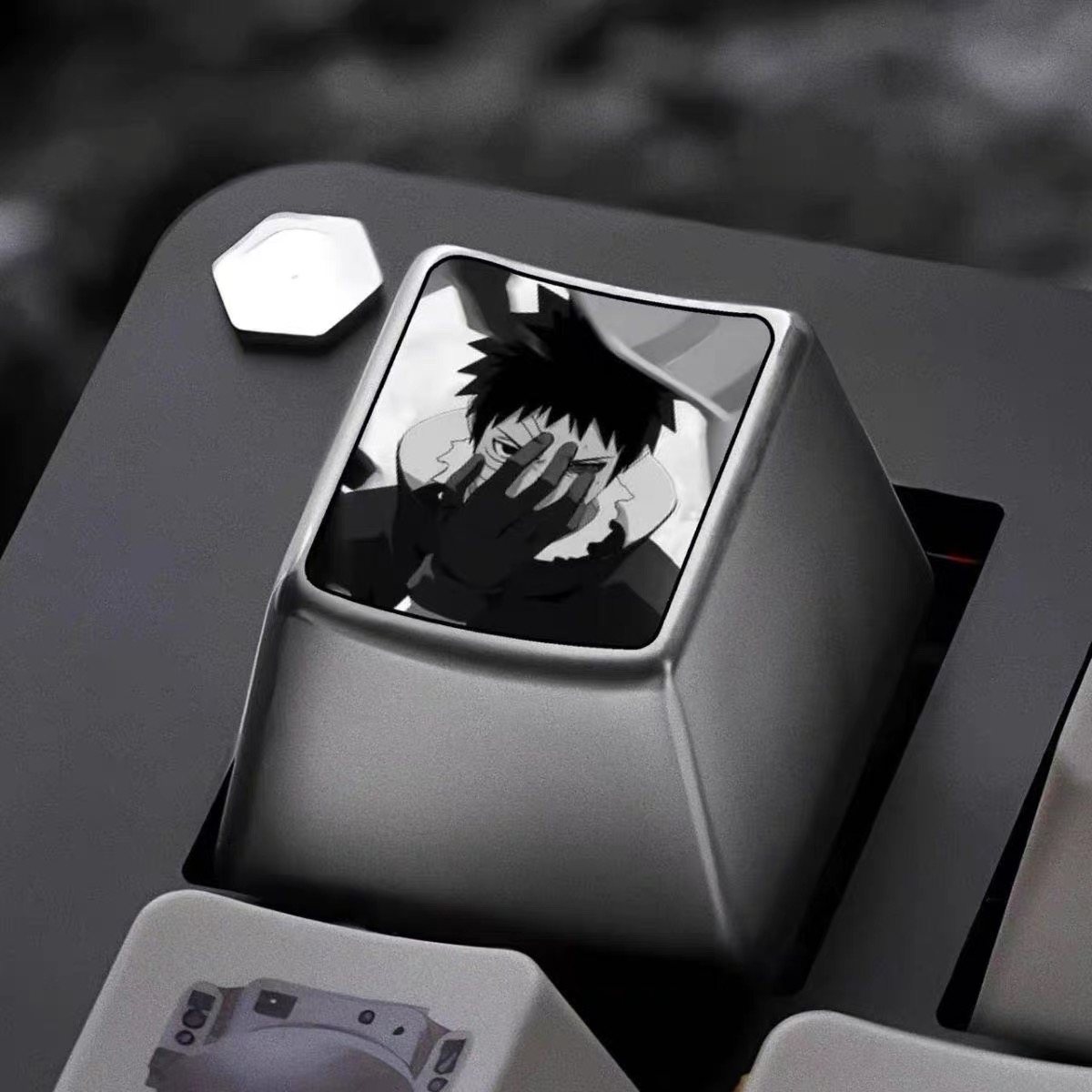
The 3D preview is a digital reference that helps you review the artwork placement and engraving style before ordering. The final engraving may vary slightly depending on artwork detail, material finish, and production process.
Ready to Create Your Custom Keycap?
Upload your artwork, preview the engraving in 3D, and add your personalized metal keycap to cart.